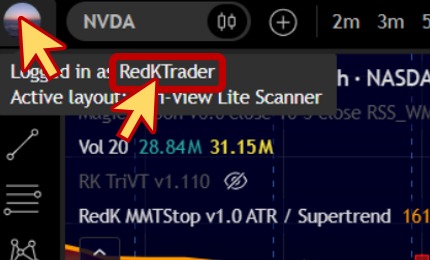
- Open any chart on TradingView and click your profile picture in the top-left corner.
- Read the name after “Logged in as”. That is your exact TradingView username - not your display name and not your email.
- Use it exactly as shown wherever we ask for your TradingView username: at checkout, for the free trial, or when you contact support.
Why it matters: invite-only indicator access is added to this exact username. If the name you give is different, the access goes to the wrong account or can’t be added at all.
Next step: check out this tip: how to find and add invite-only indicators on TradingView.
Follow RedKTrader on TradingView and on X to receive frequent Free & Pro indicator tips as they are published.
Research only - no investment or trading advice. This tip describes how to read an indicator; it is not a trade recommendation.